







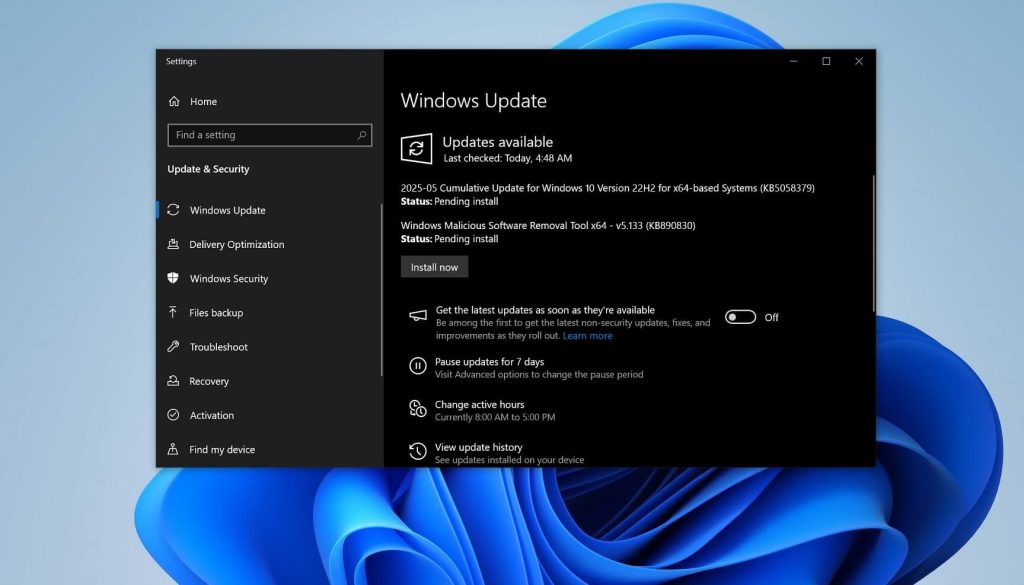
Fix KB5058379 Windows update problems including installation error, stuck at 100%, causing blue screen, rollback issues, error code 0x800f081f, patch failed to install, compatibility issues, and performance problems. Step-by-step guide with uninstall instructions and solutions for Microsoft KB5058379 update on Windows 10 & 11.
Microsoft’s KB5058379 is a cumulative Windows update released on May 13, 2025 as part of Patch Tuesday for Windows 10 21H2/22H2 (Source). This mandatory security update aimed to patch critical flaws – including five actively exploited zero-day vulnerabilities (seven zero-days in total) – and deliver bug fixes for Windows 10. However, instead of a smooth rollout, KB5058379 has been plagued with Windows update problems. Many users have found the Microsoft Windows update KB5058379 failed to install properly or introduced serious issues after installation. Reports across forums and tech sites highlighted a range of KB5058379 Windows Update problems, from installation errors and stuck at 100% progress, to system instability like Blue Screen of Death (BSOD) crashes and unexpected BitLocker recovery prompts (Source).
In this detailed post, we will break down the KB5058379 update known issues – why KB5058379 is not installing for some, how it’s causing blue screens or other errors – and provide troubleshooting steps. General Windows users will find problems and solutions outlined in clear language. Our goal at Make An App Like (a leading tech blog since 2018) is to help you understand and fix KB5058379 Windows update errors with practical guidance.
Use the Windows Update Troubleshooter:
Go to:
Settings → Update & Security → Troubleshoot → Additional troubleshooters → Windows Update, then click Run the troubleshooter.
When using the “Diagnose and fix problems with Windows Update” tool, it will automatically scan for common issues related to the update services and reset some Windows Update settings as needed.
Once the troubleshooting is complete, try installing the updates again.
net stop bits
net stop wuauserv
net stop appidsvc
net stop cryptsvc
ren C:\Windows\SoftwareDistribution SoftwareDistribution.old
ren C:\Windows\System32\catroot2 Catroot2.old
net start bits
net start wuauserv
net start appidsvc
net start cryptsvc
Clearing the Update Cache and Resetting Windows Update Components
As with most other Windows Update errors, the first thing you should try when encountering error 0x800f081f is clearing the update cache. To do this, follow these steps:
1. Run Command Prompt as Administrator
2. Enter the following commands one by one:
(If any of them fail with an error, simply skip and proceed to the next.)
net stop bits
net stop wuauserv
net stop appidsvc
net stop cryptsvc
ren C:\Windows\SoftwareDistribution SoftwareDistribution.old
ren C:\Windows\System32\catroot2 Catroot2.old
net start bits
net start wuauserv
net start appidsvc
net start cryptsvc
Fix Windows Update Error 0x800f081f — Step-by-Step
1) Run Windows Update Troubleshooter
- Open Settings → Update & Security → Troubleshoot → Additional troubleshooters.
- Select Windows Update → Run the troubleshooter.
- Apply fixes it suggests.
- Try the update again.
2) Clear Update Cache (quick reset)
- Run Command Prompt as Administrator.
- Paste and run these commands one by one (if one fails, continue to the next):
net stop bits net stop wuauserv net stop appidsvc net stop cryptsvc ren C:\Windows\SoftwareDistribution SoftwareDistribution.old ren C:\Windows\System32\catroot2 Catroot2.old net start bits net start wuauserv net start appidsvc net start cryptsvc - Restart your PC.
- Try the update again.
3) Full Windows Update components reset (PowerShell)
Faster than doing every sub-step manually.
- Run PowerShell as Administrator.
- Install the module:
Install-Module -Name PSWindowsUpdate -Force - Allow signed scripts (pick one):
- Permanent:
Set-ExecutionPolicy -ExecutionPolicy RemoteSigned -Force - This session only:
Set-ExecutionPolicy -ExecutionPolicy RemoteSigned -Scope Process
- Permanent:
- Import and reset:
Import-Module PSWindowsUpdate Reset-WUComponents -Verbose - Restart your PC, then try the update.
What this does: stops WU services, clears BITS state, backs up/refreshes SoftwareDistribution and Catroot2, resets logs/services/DLLs, resets Winsock & proxy, restarts services.
4) Use “Reset Windows Update Tool” (guided utility)
Create a System Restore Point first.
- Download the correct build from wureset.com/downloads.
- Run as Administrator → choose language.
- Accept the notice (Y).
- Run options in this order: 2, 3, 6, 11, 12, 13.
- Restart and try the update.
5) Repair system image and files
- Run Command Prompt as Administrator.
- Run:
dism /online /cleanup-image /restorehealth sfc /scannow - Restart and try the update.
6) Enable .NET components (common cause of 0x800f081f)
- Press Win+R → type
appwiz.cpl→ OK. - Click Turn Windows features on or off.
- Check “.NET Framework 3.5 (includes .NET 2.0 and 3.0)”.
- OK → let Windows download/install → Restart.
- Try the update.
(If it was already enabled: uncheck → restart → re-enable → restart → try update.)
7) Temporarily disable third-party blockers
- Turn off any third-party antivirus, firewall, or “PC cleaner/optimizer”.
- Retry the update.
- Re-enable protection after the update completes.
8) If you still get 0x800f0922 or repeated rollbacks
- Ensure you have a stable internet connection (VPN/Proxy off).
- Try the Standalone Installer: download the .msu for your KB from Microsoft Update Catalog, then double-click to install.
- If error 0x800f0922 persists, your System Reserved/EFI partition may be too small or corrupted.
- Update BIOS/UEFI to the latest.
- Update storage/chipset drivers.
- (Advanced) Extend the System Reserved/EFI partition to ~500MB+ and repair EFI/BCD if needed.
9) Last resort: uninstall the problematic cumulative update
- Settings → Windows Update → Update history → Uninstall updates.
- Select the KB → Uninstall → Restart.
- Pause updates for a few days; update drivers/BIOS, then retry.
Quick Checklist (what usually fixes it fastest)
- Troubleshooter → Cache clear → Reboot
DISMthenSFC→ Reboot- Enable .NET Framework 3.5
- Use PSWindowsUpdate
Reset-WUComponents - Try the .msu from Update Catalog
- Temporarily disable AV/VPN/optimizers
If you want, I can turn this into a one-click BAT/PowerShell script bundle (with safety prompts) so you can run fixes 2, 3, and 5 automatically.
What is KB5058379? (Overview and Intended Bug Fixes)
KB5058379 is a cumulative update for Windows 10 (OS Builds 19044.5854 and 19045.5854) that delivered May 2025’s security patches and system improvements. It was pushed to all supported Windows 10 machines, including enterprise and LTSC editions, meaning you do not have a choice but to install it eventually. According to Microsoft’s release notes, KB5058379 includes a handful of fixes and quality updates, such as:
- Security Hardening: Updates to the Windows Kernel vulnerable driver blocklist to prevent Bring Your Own Vulnerable Driver (BYOVD) attacks.
- WSL2 Graphics Fix: A correction for a case-sensitive GPU paravirtualization check in the Windows Subsystem for Linux 2, which could cause GPU support to fail in WSL2.
- System Guard Broker Error Fix: Resolved a long-standing bug where the System Guard Runtime Monitor Broker service (SgrmBroker.exe) would terminate and log Event 7023 errors in Event Viewer after earlier updates.
- Secure Boot Improvements (21H2 only): Updated Secure Boot Advanced Targeting (SBAT) for better detection of Linux systems on Windows 10 21H2.
Despite these bug fixes and security enhancements, the KB5058379 patch has issues that overshadowed its benefits. Initially, Microsoft’s support bulletin did not list new problems, claiming they were “not aware of any new issues”. But user feedback quickly contradicted that, revealing serious trouble caused by KB5058379.
Installation Errors and Update Failures (KB5058379 Not Installing)
One of the first hurdles with KB5058379 was simply getting it installed. Many users reported KB5058379 failed to install, often with cryptic error codes or endless reboot loops. Here are some common installation problems and errors:
- Update Download Stuck at 100%: Several systems would download KB5058379 fully, but then get stuck when reaching 100% completion. For example, one user described that “the update can be downloaded normally, but when the download reaches 100%, the system gets stuck. After restarting, it starts downloading again.” (Source) In such cases, Windows Update never moves past 100%, effectively not installing KB5058379 at all.
- Installation Rollback with Error Codes: Other users did get the update to install on reboot, only to have Windows undo the changes. A typical scenario: after reboot, the installation reaches ~90% and then says “Something didn’t go as planned… undoing changes,” rolling back the update. For instance, a user on Microsoft Q&A noted every attempt rolled back at 98% with error 0x800f0922. Error 0x800f0922 often indicates issues with the system’s boot partition or failing to apply a component, causing the update to fail during the final stage. Another user on Reddit encountered error 0x80071ab1 (ERROR_LOG_GROWTH_FAILED) each time KB5058379 tried to install on a fresh Windows 10 LTSC system (Source). There are also reports of error 0x800f081f (a Windows update error typically related to missing components like .NET Framework 3.5) when attempting to install KB5058379. These installation errors would result in “failed to install” messages or repeated retry loops.
- Repeated Attempts and Automatic Rollback: Microsoft eventually acknowledged that affected devices might make several attempts to install KB5058379 and then give up – Startup Repair would finally rollback the update to the previous version. In other cases, the PC gets stuck in a fail-reboot cycle (more on that in the next section). If you see messages about Windows “undoing changes” or have to input recovery information multiple times, the update likely failed and rolled itself back.
- Download Problems and Error 0x800f0845: In some event logs, KB5058379’s failure is accompanied by Event ID 20 or error 0x800F0845 (Source) during installation. This essentially means Windows encountered a fatal error applying the package (in fact, Microsoft later confirmed the update could cause the Local Security Authority process to crash, leading to these failures (Source)).
- Miscellaneous Issues: Certain third-party software configurations can prevent KB5058379 from installing. For example, an outdated Citrix Session Recording Agent (version 2411) was known to make Windows updates fail and revert since early 2025. Systems with that Citrix component installed saw the cumulative update download, but on restart it would consistently rollback (“failed to install”). Citrix released an update to fix this incompatibility by April 2025, but anyone running the older agent might hit this issue with KB5058379. In general, Windows KB5058379 compatibility issues with certain drivers or software can manifest as installation failures.
In summary, if KB5058379 is not installing on your PC, you’re not alone. Symptoms include the update stuck at 100% download, installation freezing or crashing during reboot, and Windows throwing various error codes (0x800f0922, 0x800f081f, 0x80071ab1, etc.) followed by automatic rollbacks. Next, we’ll look at one of the most severe outcomes some experienced even when the update did install: blue screen crashes and BitLocker lockouts.
BSOD Crashes and BitLocker Recovery Loop After KB5058379
The Windows BitLocker recovery screen prompt that some users encountered after installing KB5058379. Many systems would boot straight into this BitLocker key prompt on first restart post-update.
Perhaps the most alarming problems with KB5058379 were the Blue Screen of Death (BSoD) errors and BitLocker recovery screens that appeared on certain PCs after installing the update. Within days of release, administrators noticed that some machines would install KB5058379, reboot, and then immediately get stuck in the Windows Recovery Environment asking for a BitLocker recovery key. In many cases, the PC would show the BitLocker prompt every reboot, effectively locking users out until the key was entered.
What’s unusual is that BitLocker recovery is normally only triggered by significant system changes (like altering disk configuration or firmware). Yet KB5058379 itself was causing devices to prompt for the BitLocker key on boot – which is not typical for a software update. According to user reports compiled by Windows Latest, the update process would start, then end up at a screen saying “Enter the recovery key to get going again (Keyboard layout: US)” with a field to input the 48-digit BitLocker key. Entering the correct key would sometimes allow the update to finish configuring and reach the login screen, but on other systems the nightmare continued with repeated BitLocker screens or even system crashes.
Blue Screen (BSoD) Errors: In addition to the BitLocker lockouts, some users experienced actual system crashes. There were cases where the PC would crash with a Blue Screen error during reboot, often followed by the BitLocker recovery screen on the next startup. For example, one report mentioned a brief BSOD with code IRQL_NOT_LESS_OR_EQUAL during the update restart. Another common stop error seen was related to lsass.exe terminating (which can produce various BSOD codes). Essentially, the update’s installation would trigger a critical failure in Windows, causing a blue screen, and then as the system tried to recover, BitLocker would detect the abnormal shutdown and demand the key.
A Blue Screen of Death that can occur during the KB5058379 update installation. On some systems, the update caused crashes or automatic repair loops, often alongside BitLocker recovery prompts.
Root Cause – Intel TXT Compatibility Bug: Microsoft investigated these crash-on-boot issues and identified a culprit: Intel Trusted Execution Technology (TXT). On PCs equipped with 10th generation or newer Intel vPro processors (common in business-class Dell, HP, Lenovo laptops), having Intel TXT enabled in BIOS could conflict with KB5058379. The bug in the update caused the Local Security Authority process (lsass.exe) to crash during boot when TXT was on, which in turn triggered Windows’ Automatic Repair. If BitLocker was enabled on the drive (as it often is on such business machines), the system then asked for the recovery key because it couldn’t verify the system state after the crash. This created a vicious cycle: the PC either kept trying and failing to install the update (multiple reboot attempts), or got stuck in a BitLocker recovery loop or Startup Repair loop.
Microsoft formally confirmed this as a known issue in Windows 10 version 22H2 and LTSC 2021 systems. They noted it primarily affects enterprise clients since consumer PCs rarely have Intel vPro/TXT or BitLocker enabled by default. It’s worth mentioning that Windows 11 was not officially affected by this specific KB5058379 bug – Windows 11’s May 2025 updates had their own KB numbers and did not list this BitLocker problem. (There were anecdotal reports of a similar issue on a few Windows 11 machines, but Microsoft did not find it prevalent on Windows 11.)
Out-of-Band Fix (KB5061768): In response to the chaos, Microsoft rushed out an emergency patch KB5061768 on May 19, 2025 to address the BitLocker/BSOD fiasco. This out-of-band update fixed the underlying issue by correcting whatever caused the lsass crash on Intel TXT systems. If your system installed KB5058379 and you encountered these boot issues, installing KB5061768 or any later cumulative update will resolve it. In fact, Microsoft recommends affected users update to the latest patches (May 19, 2025 or later) which include the fix. Applying the fix should stop the BitLocker prompts and BSOD incidents going forward (Source).
Workaround – Disable Intel TXT: For users who were locked out or unable to boot because of this, a temporary workaround was to change a BIOS setting. Many admins found that disabling “Intel Trusted Execution” (TXT) in the BIOS would prevent the BitLocker recovery trigger so that the update could complete. Essentially, turning off TXT (sometimes labeled “Intel Trusted Execution Technology” or an option under CPU/Security settings) before installing KB5058379 allows the system to boot normally, albeit it may prompt for the BitLocker key once due to the BIOS change. Windows Latest reported that disabling Intel TXT and then installing the update stopped the BSOD and BitLocker screen from recurring. Microsoft’s support also guided some users to disable Secure Boot and other virtualization features as needed – the general idea being to eliminate whatever low-level conflict was at play until the patch could be applied. After KB5058379 (and preferably the KB5061768 fix) is installed successfully, you can re-enable the BIOS features.
Bottom line: The KB5058379 causing blue screen and BitLocker issues was a serious bug affecting mostly corporate PCs with certain Intel hardware. If you encountered a blue screen crash or are stuck at a BitLocker recovery screen after this update, know that it was a known problem with a specific cause, and that Microsoft’s fix (or the BIOS workaround + fix) should resolve it. Next, we’ll cover other KB5058379 patch issues like app compatibility problems and performance slowdowns that some users reported after installing the update.
Compatibility Issues and Broken Apps After KB5058379
Beyond the headline-grabbing crashes, some users experienced more subtle issues post-update – essentially KB5058379 breaking certain apps or devices. Here are a few compatibility hiccups that have been attributed to this update:
- Software Compatibility Problems: Several people noted that after KB5058379, some applications (especially older or unmaintained software) started misbehaving. Programs might fail to launch or crash unexpectedly. This is likely due to underlying changes in the OS – for example, enhanced security settings or updated system libraries that older apps weren’t expecting. Anecdotally, users found that updating those applications or reinstalling them could help, implying that outdated third-party software may not be fully compatible with changes introduced in KB5058379 (Source). If you have legacy software that stopped working right after the update, check if there’s an update or patch available for that application.
- Driver and Device Issues (Printers, Peripherals): There were reports that some hardware devices needed attention after KB5058379. For instance, a few users on forums mentioned their printers or other peripherals were no longer recognized by Windows immediately following the update. In one case, a digital artist found their Wacom tablet driver was not responding until they reinstalled it (this coincided with the update, suggesting a possible link). These issues often stem from driver incompatibilities – the update might have updated certain driver frameworks or reset configurations. Updating the device drivers to the latest version or reinstalling them can solve such issues. Microsoft noted that display adapters, network cards, and printers with outdated drivers are frequent culprits for instability after updates.
- Network Connectivity Resets: Some isolated reports indicated network settings being altered – for example, Wi-Fi credentials or adapter settings being reset. While not widespread, if you find networking acting up post-update, you might need to re-enter your Wi-Fi password or update your network card driver. In rare cases, users had to remove and re-add certain network configurations.
- Enterprise Software Conflicts: As mentioned earlier, specific enterprise tools like the Citrix Session Recording Agent had a known conflict, causing the update to fail. Even if installation succeeds, other enterprise security or monitoring agents might not play nice with the changes until those tools are updated. Always check vendor support if a work-related app breaks after a Windows patch.
It’s hard to say how many of these compatibility issues are directly due to KB5058379, but the timing suggests a connection. Major Windows cumulative updates can sometimes expose weaknesses in older drivers or software. The best mitigation is to ensure all your apps and device drivers are updated to their latest versions whenever you apply a new Windows update. Doing so can prevent many KB5058379 compatibility issues from arising in the first place.
Performance Issues After Installing KB5058379
Another category of complaint from general users was performance degradation following the KB5058379 update. While not everyone experienced this, a subset of users noticed that their system became noticeably slower or behaved abnormally after the update, even if installation succeeded. Some symptoms reported include:
- Slow Boot and Laggy System: Users have described extremely long startup times and lag when launching apps after KB5058379. One user shared that their PC, which previously ran smoothly, became “almost unusable, with extremely long wait times for any app to load and very slow startups” immediately after installing KB5058379 (and a subsequent June update). Even basic actions like opening a browser or the Start menu resulted in freezes.
- High Disk or CPU Usage: In the above case, the user observed their Windows OS drive usage pegged at 100% in Task Manager after the update. This suggests some background process (possibly related to the update or an indexing service) was consuming resources incessantly. High disk usage can make the whole system crawl. SFC (System File Checker) did find and repair some corrupted files for this user, but the performance issues returned shortly after.
- Sleep/Hibernate Problems: There were mentions that putting the PC to sleep and waking it caused issues after the update (as in, the system might restart or behave sluggishly upon resume). This might be tied to power management changes or simply the fact that the system was mid-issue already.
It’s difficult to pinpoint exactly why KB5058379 caused performance issues on certain PCs. It could be due to file corruption during the update (which SFC/DISM repairs might fix), or interactions with specific drivers (for example, storage or chipset drivers might need updating). Another possibility is that the system was in the process of doing post-update tasks (like re-indexing the search database, or the System Guard service issues which KB5058379 was meant to fix might have side-effects) – but the slowdown described was beyond normal.
If you experience severe slowdowns after this update, you have a few options: attempt repairs (SFC and DISM as described in the next section), update all drivers, or as a last resort, consider uninstalling KB5058379 to see if performance returns to normal. In the Microsoft Q&A forum, an advisor ultimately suggested uninstalling the problematic updates given the “ridiculous” slowdown, acknowledging it’s a trade-off between performance and security. We’ll cover how to uninstall the update safely in the next section, as well as other troubleshooting steps for performance problems.
Troubleshooting and Fixes for KB5058379 Issues
Now for the important part – how to fix KB5058379 Windows update errors and issues. The approach to take will depend on which problem(s) you’re facing (installation failure vs. blue screen vs. slow performance, etc.). Below we outline solutions and workarounds for the various KB5058379 problems, targeting each of the keywords issues we discussed:
1. Fixing Installation and Update Errors
If Windows Update KB5058379 failed to install or keeps erroring out, try the following steps:
Run the Windows Update Troubleshooter: Windows has a built-in troubleshooter tool that can automatically find and fix common update problems. Go to Settings > Update & Security > Troubleshoot > Additional troubleshooters > Windows Update and run it. This will attempt to reset some update components and check the system for issues. Many times, this can resolve simple cases where the update didn’t download or apply correctly.
Clear the Windows Update Cache: A classic fix for stuck updates is to clear the cached files and reset the update components. You can do this manually using Command Prompt (as admin). Run the following commands one by one:
net stop wuauserv
net stop bits
net stop cryptsvc
net stop appidsvc
ren C:\Windows\SoftwareDistribution SoftwareDistribution.old
ren C:\Windows\System32\catroot2 Catroot2.old
net start wuauserv
net start bits
net start cryptsvc
net start appidsvc
This stops the Windows Update services, renames the SoftwareDistribution and Catroot2 folders (which store update files and signatures), and then restarts the services. Essentially it forces Windows to re-fetch updates fresh, which can fix issues where a corrupt download or file is causing the failure. After doing this, reboot and try checking for updates again or manually installing the KB.
Enable .NET Framework 3.5 (if error 0x800f081f): If you encountered error code 0x800f081f, it often relates to the system not finding required components, commonly the .NET Framework 3.5 files. Ensure that .NET Framework 3.5 is enabled on your system (it’s an optional feature in Windows 10). You can enable it via Control Panel > Programs > Turn Windows features on or off – check “.NET Framework 3.5”. Or use DISM to enable it via Windows installation media if necessary (Source). One user noted that enabling the “.NET Framework 2.0/3.5” Windows components was among the steps they tried when KB5058379 initially failed. This won’t harm anything and might resolve that particular error.
Run System File Checker (SFC) and DISM scans: It’s possible some system files or the component store are corrupted, causing the update to fail. Open an admin Command Prompt and run sfc /scannow. Let it complete and see if it finds/fixes any integrity violations. Next, run the following DISM commands:
Dism /Online /Cleanup-Image /ScanHealth
Dism /Online /Cleanup-Image /RestoreHealth
These will check and restore the health of the Windows component store. After they complete, try installing the update again. In one case, SFC did repair files (though it didn’t single-handedly fix the issue in that user’s scenario), but it’s still a necessary step in troubleshooting.
Free Up System Reserved Partition (if error 0x800f0922): Error 0x800f0922 during a cumulative update often indicates not enough space in the System Reserved partition or a problem updating boot files. If you have a dual-boot setup or recently modified partitions, that could be a factor. One advanced user discovered their EFI boot partition had issues (causing 0x800f0922), and they fixed it by repairing the EFI and BCD (boot configuration). For average users, a less invasive step is to ensure your recovery/boot partition has at least ~500MB free. If you’re comfortable, you can use a tool like Disk Management or a partition editor to extend it if it’s too small. Otherwise, this is a rare scenario – if other steps fail and 0x800f0922 persists, consider seeking tech support for boot partition repair.
Try the Standalone Installer (MSU file): Sometimes Windows Update itself glitches out. Downloading the update directly from the Microsoft Update Catalog and installing it manually can bypass such issues. You can get the standalone KB5058379 .msu package from Microsoft’s site. Once downloaded, double-click the file to run the Windows Update Standalone Installer. Several users had success this way when the normal Windows Update method kept failing. If the standalone installer also fails, it should give an error code which you can troubleshoot further.
Temporarily Disable Security Software: On occasion, third-party antivirus or firewall programs might interfere with Windows updates. If you have any non-Microsoft security software, try disabling it and then attempt the update again. Be sure to re-enable protection afterward.
2. Fixing Blue Screen and BitLocker Boot Issues
If you installed KB5058379 and ended up in a BitLocker recovery key loop or a BSOD on reboot, use these steps to regain access:
Enter the BitLocker Recovery Key: First, if your system is showing the BitLocker recovery screen, enter your recovery key to unlock the disk. (Hopefully you have this key saved – it could be in your Microsoft account online, with your IT department, or printed out in a safe place. Microsoft’s guide on finding your BitLocker key can help.) Once you enter the key, the system may boot normally into Windows (or into the update finishing process). If it does, immediately proceed to install the KB5061768 fix (see next step). Note: If you cannot get past the BitLocker screen because you don’t have the key, your options are unfortunately limited – Microsoft warns that without the key, you cannot disable BitLocker and may have to reinstall Windows.
Install the Emergency Fix (KB5061768): As mentioned, Microsoft released KB5061768 specifically to fix the BitLocker/BSOD bug in KB5058379. If your system didn’t automatically get this, you can download it from the Update Catalog and install it. This patch will stop the lsass.exe crashes and BitLocker triggers going forward. After installing KB5061768 (and rebooting), the problem should be resolved – you shouldn’t get the recovery screen on startup anymore.
BIOS Workaround (Disable Intel TXT): If you cannot log into Windows to install the fix (e.g. you hit a BSOD on each boot or can’t get past recovery), use the BIOS workaround to get the system bootable. Reboot and enter your BIOS/UEFI setup (usually by pressing a key like F2, F10, Del, or Esc during power-on – your screen might indicate the key). In the BIOS settings, navigate to Security or Advanced options and find Intel Trusted Execution Technology (TXT). Disable Intel TXT (it might also be called “Trusted Execution” or an option under virtualization/security). While in BIOS, you can also disable Intel VT-d (Intel Virtualization for Directed I/O) if TXT alone doesn’t do it, though many reports said VT-d can stay enabled. If Secure Boot is enabled, you could try disabling it as well as a last resort.
Save and exit BIOS after making these changes. The PC will reboot – you will likely be prompted for the BitLocker key once more because changing BIOS security settings is detected as a configuration change (so have that key handy). Enter the key, and Windows should then boot normally without crashing. Now you can log in and immediately apply the KB5061768 patch (or at least uninstall KB5058379). Once the fix is in place, you can go back into BIOS and re-enable Secure Boot and Intel TXT/VT-d for security, as the updated Windows should then handle it fine.
Uninstall via Recovery (if unable to boot at all): In a scenario where even the above doesn’t work (say you can’t access BIOS or the system BSODs before you can do anything), you might try booting into Windows Recovery Environment manually. Interrupt the boot process 2-3 times (power off when Windows tries to load) to trigger the automatic recovery menu. From there, use Advanced Options > Uninstall Updates and choose to uninstall the Latest Quality Update, which should be KB5058379. This can remove the update offline. Provide your BitLocker key if prompted to unlock the drive. Once uninstalled, the system should boot and revert to the pre-update state. You can then install the fix or block the update until you implement the BIOS change.
3. Resolving App and Compatibility Issues
If some applications or devices are broken after the update:
Update or Reinstall Affected Apps: For any program that is crashing or refusing to open post-update, check the software vendor’s site for an update. It’s possible an update to the app is needed to work with the latest Windows changes. If none is available, try reinstalling the application. This can reset its configuration and make it adapt to any new system libraries. As noted, compatibility issues were observed mostly with older software and drivers. Bringing them up to date often fixes the problem.
Update Device Drivers: Head to Device Manager and see if any devices have a warning icon. Regardless, it’s good practice to update key drivers (graphics, network, audio, chipset, printer drivers, etc.) after major Windows updates. Right-click devices and choose Update driver, or download drivers from the manufacturer’s website. For instance, if your printer stopped working, get the latest driver from the printer manufacturer and install it. Windows update issues like KB5058379 breaking devices are frequently resolved by installing updated drivers that are tested with the new OS changes.
Reconfigure Network/Peripherals: If your network settings were reset, you may need to rejoin Wi-Fi networks or re-enter IP configurations. For peripherals, unplug and reconnect them. Sometimes simply removing a device in Device Manager and scanning for hardware changes will reinstall it correctly.
Citrix and Enterprise Tools: Ensure you’ve updated any enterprise software (like the Citrix SRA issue we mentioned). In that case, upgrading to Citrix Session Recording Agent v2503 or newer resolves the update-installation conflict. So, check for updates to any system-level software your organization uses.
4. Addressing Performance and Stability Problems
If your system is running slow or unstable after KB5058379:
Repair System Files: As with installation issues, running SFC and DISM commands can help if some files got corrupted and are causing slowness. Users have reported SFC finding corrupt files after the update in some cases. Run sfc /scannow, and then DISM /Online /Cleanup-Image /RestoreHealth, and reboot. This might improve performance if, for example, a Windows component is stuck in a bad state consuming resources.
Check Resource Usage: Open Task Manager and see what’s eating up CPU, memory, or disk. Is it a Windows process like Windows Defender, or an indexing service, or maybe a third-party app stuck in a loop? If it’s a specific process, that can guide your next step. For instance, if “Antimalware Service” is using high CPU, it might help to update your anti-virus definitions or disable real-time protection temporarily to see if performance returns. If disk is at 100% due to, say, a Windows service, there might be a known bug – searching that process along with KB5058379 could reveal a specific fix.
Install Subsequent Updates: Microsoft may have addressed performance quirks in subsequent patches. If you installed KB5058379 but then paused updates (perhaps out of caution), consider installing the next cumulative updates (June 2025 and onward). Sometimes performance bugs are fixed in follow-up releases. In one user’s case, their PC installed KB5058379 and then KB5060533 (likely a June update) automatically, after which the performance tanked. It’s possible a combination of the two or something in the June update exacerbated issues. Keeping the system fully up to date (with all quality fixes) is recommended once the major bugs are resolved.
Uninstall KB5058379 (Last Resort for Performance): If all else fails and your system is unbearably slow, you might choose to uninstall the KB5058379 update to see if that restores performance. Do note, removing it will also remove the security fixes it carried, potentially leaving you exposed to those vulnerabilities until you find an alternative. Microsoft advisors have, however, supported users in uninstalling the update when it was causing severe problems, acknowledging the security trade-off. If you choose this route, follow the next section’s guide on how to properly uninstall the update. After uninstalling, monitor if the sluggishness is gone. You might then delay re-installing it until you can pinpoint the cause (for example, if a certain driver update is needed in conjunction).
5. How to Uninstall KB5058379 (Windows KB5058379 Uninstall Guide)
If you decide to remove the update (either due to crashes, performance issues, or other conflicts), here’s the uninstall guide:
- Open Windows Update History: Go to Settings > Windows Update > Update History. At the top, click Uninstall updates. This will open the classic Control Panel list of installed updates.
- Find KB5058379 in the list: It might be labeled as “2025-05 Cumulative Update for Windows 10 (KB5058379)”. Select it and click Uninstall.
- Confirm and allow the process to complete. You will need to reboot your PC after the uninstall. Windows will then revert to the state before that update was applied (your programs and files remain intact).
- Important: After uninstalling, use the Pause updates feature to prevent Windows from immediately reinstalling KB5058379. In Settings > Windows Update, you can click “Pause updates for 7 days” (or set a longer pause in Advanced options). This gives you time to hopefully apply a fix (like an updated driver or the out-of-band patch) before Windows tries to apply KB5058379 again.
- Keep in mind that uninstalling a cumulative update removes its security patches. So, you should plan to re-install the update (or a fixed version of it) once you’ve resolved the issues. Don’t stay on an old update indefinitely.
For those comfortable with command-line: you can also uninstall via the DISM tool. Open Command Prompt as admin and use:
wusa /uninstall /kb:5058379
dism /Online /Remove-Package /PackageName:PACKAGE_ID
(where PACKAGE_ID is the identifier for KB5058379, which you can find by running dism /online /get-packages). However, the Control Panel method is simpler for most users. Note that if the update is combined with a servicing stack update, the wusa /uninstall might not work directly; DISM is the surefire way in that case, but only use it if you’re familiar with it.
6. Preventing Future Update Issues
As a general best practice, here are a few tips to avoid headaches with Windows Updates like KB5058379:
- Backup Before Updates: Always keep backups of your important data, or even consider making a system restore point or system image before patching. This way, if an update goes awry, you have a recovery path.
- Stagger Updates (for Businesses): In enterprise environments, deploy updates to a test group or use a staggered rollout. Many organizations first test Patch Tuesday updates on a subset of PCs (or in a lab) before wider deployment, which can catch issues like the BitLocker bug early.
- Stay Informed on Known Issues: Microsoft publishes known issues in their update release notes (on the Windows Release Health dashboard). In this case, the KB5058379 known issues (BitLocker and Citrix) were documented a couple of days after release. Checking those notes or tech news (like BleepingComputer or Windows Latest) around the time you plan to update can alert you to potential problems. We saw that by May 15, 2025, sites were reporting the BitLocker bug widely.
- Maintain Drivers and BIOS: Ensure your device drivers and even BIOS/UEFI firmware are up-to-date, especially for critical hardware. For example, updated BIOS versions might have fixes for TPM or Intel technologies that could mitigate such issues. Similarly, current drivers can reduce compatibility glitches.
- Enable Update Rollback/Recovery Options: Windows 10 has a feature called “Go back to the previous version” available for a limited time after installing an update. Make sure you don’t delete the Windows.old folder immediately – it could help you roll back if needed. Also, having System Restore enabled can be a lifesaver to revert system changes.
By following the above advice, you can minimize the disruption caused by problematic updates and confidently apply the necessary fixes.
Conclusion
The KB5058379 update for Windows 10, while crucial for security (addressing serious vulnerabilities), unfortunately became notorious for the problems it caused. From failed installations with cryptic error codes to severe issues like blue screen crashes and BitLocker lockouts on reboot, this update tested the patience of many Windows users and IT admins. Microsoft did respond with an out-of-band patch and updates to documentation, but for those in the thick of it, the immediate task was figuring out how to recover their systems.
In this article, we’ve detailed the KB5058379 Windows update problems and solutions. To recap the key points:
- Installation Failures: Many experienced KB5058379 installation errors (errors 0x800f0922, 0x800f081f, etc.) or had the update stuck downloading/installing. We provided steps to troubleshoot these, like running the update troubleshooter, clearing the update cache, enabling .NET 3.5, and manually installing the patch.
- Blue Screen & BitLocker Issues: A known bug with Intel TXT caused BitLocker recovery prompts and boot loops on some systems. The solution was to disable certain BIOS security features and/or install the emergency fix KB5061768. We walked through how to get past the BitLocker screen and apply these fixes.
- Compatibility and Performance: The update also led to secondary issues like app compatibility problems (older drivers/apps breaking) and even performance slowdowns on a few PCs. Updating drivers, reinstalling affected software, or in worst cases uninstalling the update were ways to address these.
- Uninstall Guide: We provided a Windows KB5058379 uninstall guide with steps to safely remove the update via Settings, should you need to rollback.
Thankfully, as of mid-2025, Microsoft has resolved the major KB5058379 patch issues with follow-up updates. If your system is fully updated beyond May 2025, you should have the fixes in place. However, if you’re still encountering any of the discussed problems, the troubleshooting steps in this guide should help you fix them.
Remember, keeping your system and backups in order will make dealing with such update glitches much less painful. Windows updates are essential for security, but as KB5058379 reminded us, they can occasionally come with unintended consequences. We hope this comprehensive guide helps general users and IT professionals alike navigate the KB5058379 Windows update problems and apply the necessary fixes to get their systems running smoothly again. Stay safe and updated!
Sources: The information and solutions above are based on user reports, Microsoft support documentation, and expert technical articles regarding the KB5058379 update and its issues.
The update often fails due to corrupted system files, insufficient space in the System Reserved partition, or conflicts with third-party software. Common error codes include 0x800f081f, 0x800f0922, and 0x80071ab1. Running the Windows Update Troubleshooter, resetting update components, or manually installing the update usually resolves it.
If KB5058379 gets stuck at 100% or keeps rolling back, clear the Windows Update cache, run DISM / SFC scans, and try the standalone installer from Microsoft Update Catalog. In some cases, disabling antivirus or updating BIOS/drivers is required to complete the update successfully.
Yes, many users reported blue screen crashes and BitLocker recovery loops after installing KB5058379, especially on Intel vPro devices with TXT enabled. Microsoft released an emergency fix (KB5061768) to address this. As a workaround, disabling Intel TXT in BIOS and then applying the patch stops the crashes and recovery prompts.

 Your Topics | Multiple Stories: 500+ Topics For Multiple Stories